Step 1. Ensure you have an active API Subscription
- Log in to the FieldClimate Web Application: - https://fieldclimate.com/user-api-services
- Send a request to activate your API subscription - LINK
Step 2. Get Your Client Credentials
Once your subscription is active:
- Find your client-id and client-secret on the same page: - https://fieldclimate.com/user-api-services
Step 3. Add Callback URLs
Update your OAuth client settings with these callback URLs (if using Postman)
https://www.getpostman.com/oauth2/callbackhttps://oauth.pstmn.io/v1/browser-callback
Step 4. OAuth2 Setup on Postman
Configure your Authorization settings on Postman collection level. Folders and requests can then inherit the settings from there.

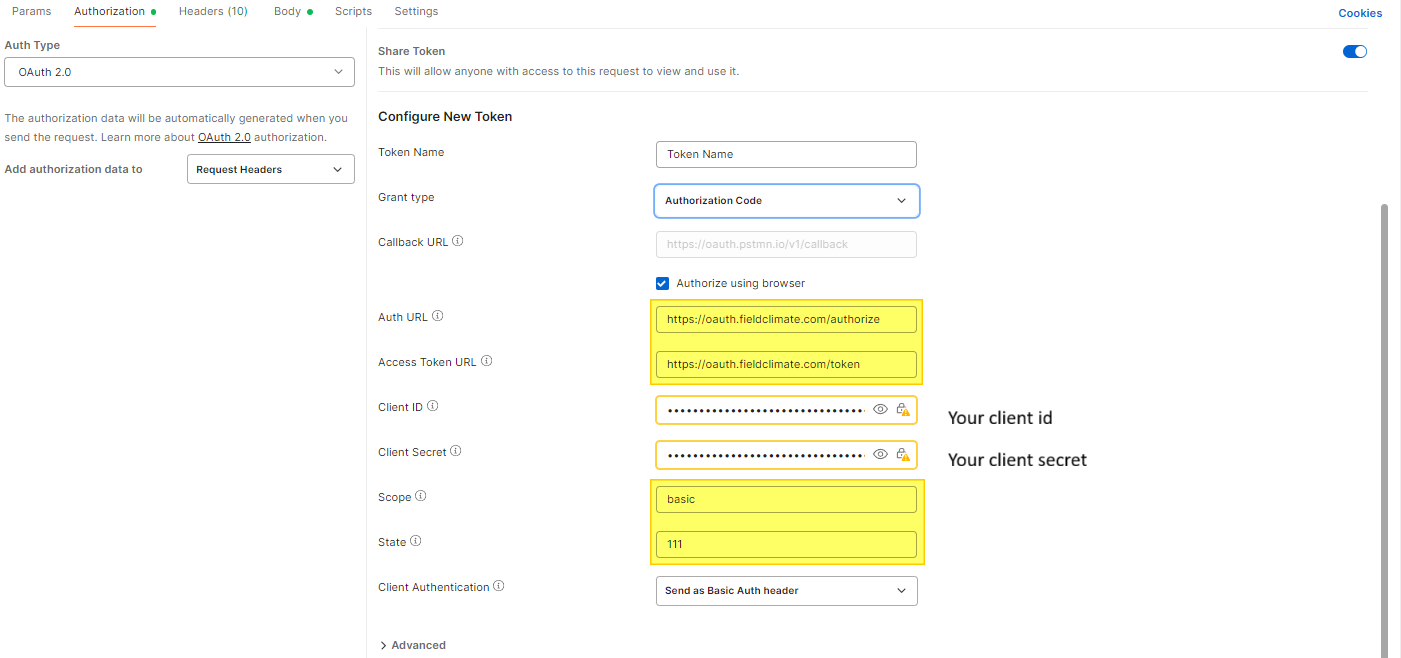
Special settings
State: any number, e.g.: 146
Step 5. Get a New Access Token
Once per Postman session, you have to request a new access token.
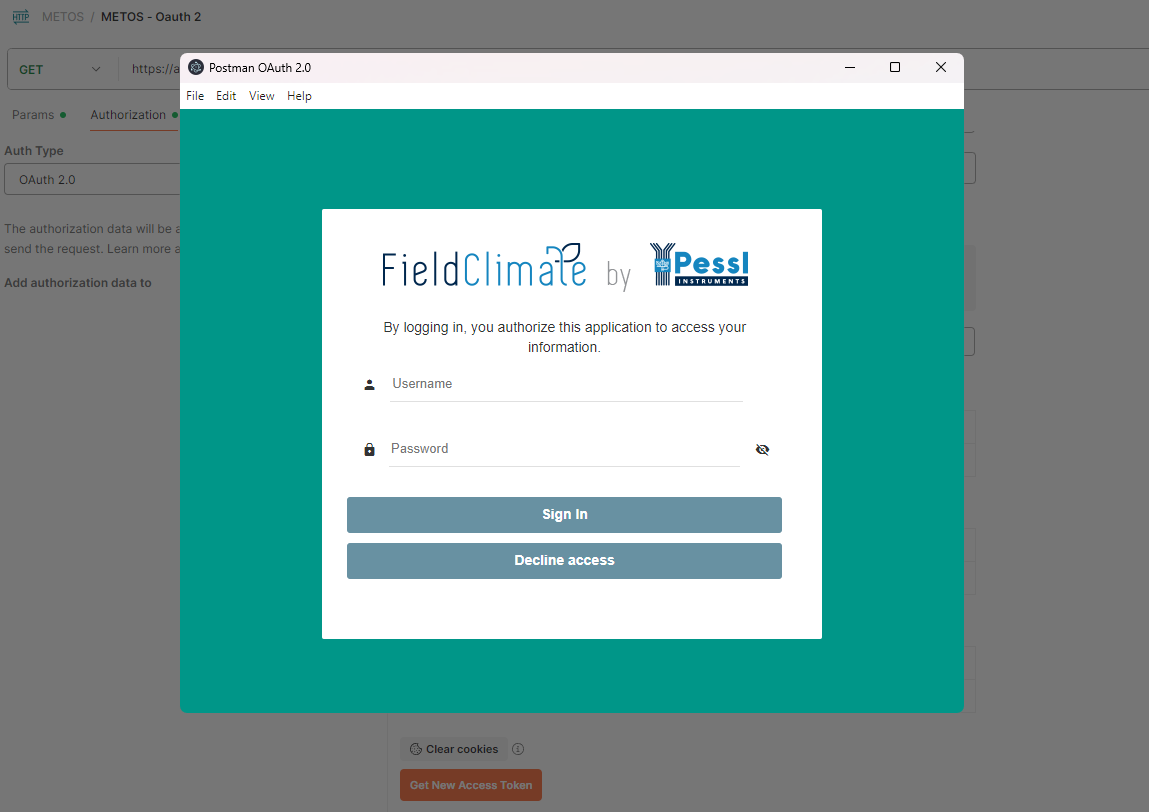
The OAuth login prompt from FieldClimate is shown asking you for your FieldClimate account credentials.
Refresh Token example using Authorization Code Flow
Prerequisites:
- Allowed CallBack URL. For the example below, we used https://oauth.pstmn.io/v1/callback.
- Make sure your Application's Grant Type include authorization_code.
- Make sure your Application's Grant Type include refresh_token.
Step 1. Get the {{code}} returned in the callback URL from Get New Access Token
You will need to first get the {{code}} which is the authorization code to exchange. You will get this in the callback URL from authorization (Get new access token).
In this example, we used Authorize via browser.
Example of the callback URL obtained after authenticating the user:
https://oauth.pstmn.io/v1/callback?code=e6bfb58c...57e0e3a1&state=x
Code: e6bfb58c...57e0e3a1
Step 2. Get Authorization Code
Once you have obtained {{code}} in Step 1, you can obtain the refresh_token. You will need to make a POST to {{oauth_url}}/token:
Example POST to token URL:
{
    "grant_type": "authorization_code",
    "code": "{{authorization_code}}",
    "client_id": "{{client_id}}",
    "client_secret": "{{client_secret}}",
    "redirect_uri": "{{callback_url_1}}"
}
Example POST to token URL response:
access_token is used to authenticate API.
refresh_token is used to obtain a new access token
Step 3. Exchange Refresh Token
Use the refresh_token obtained in the previous step to get a new access token and a new refresh token. You will need to make a POST to {{oauth_url}}/token:
Example POST to token URL:
{
    "client_id": "{{client_id}}",
    "client_secret": "{{client_secret}}",
    "grant_type": "refresh_token",
    "refresh_token": "{{your_code}}"
}
Example POST to token URL response:
Need Help?
If you have questions about your API limits or need assistance troubleshooting an API request, you can check our FAQ section - LINK - or submit a ticket through the METOS® Support Center, and include the following information so we can investigate efficiently:
Required Information
- Authentication method: Your Username, HMAC Public Key, or OAuth 2.0 Client ID
- Device ID and the affected time period
- Full request details:
- Method (GET, POST, etc.)
- URL
- Payload/body (if applicable)
- Full response details:
- HTTP status code
- Response message
- Returned result or error object
- Screenshots, if available, to help illustrate the issue
Providing these details ensures faster and more accurate support.
Was this article helpful?
That’s Great!
Thank you for your feedback
Sorry! We couldn't be helpful
Thank you for your feedback
Feedback sent
We appreciate your effort and will try to fix the article