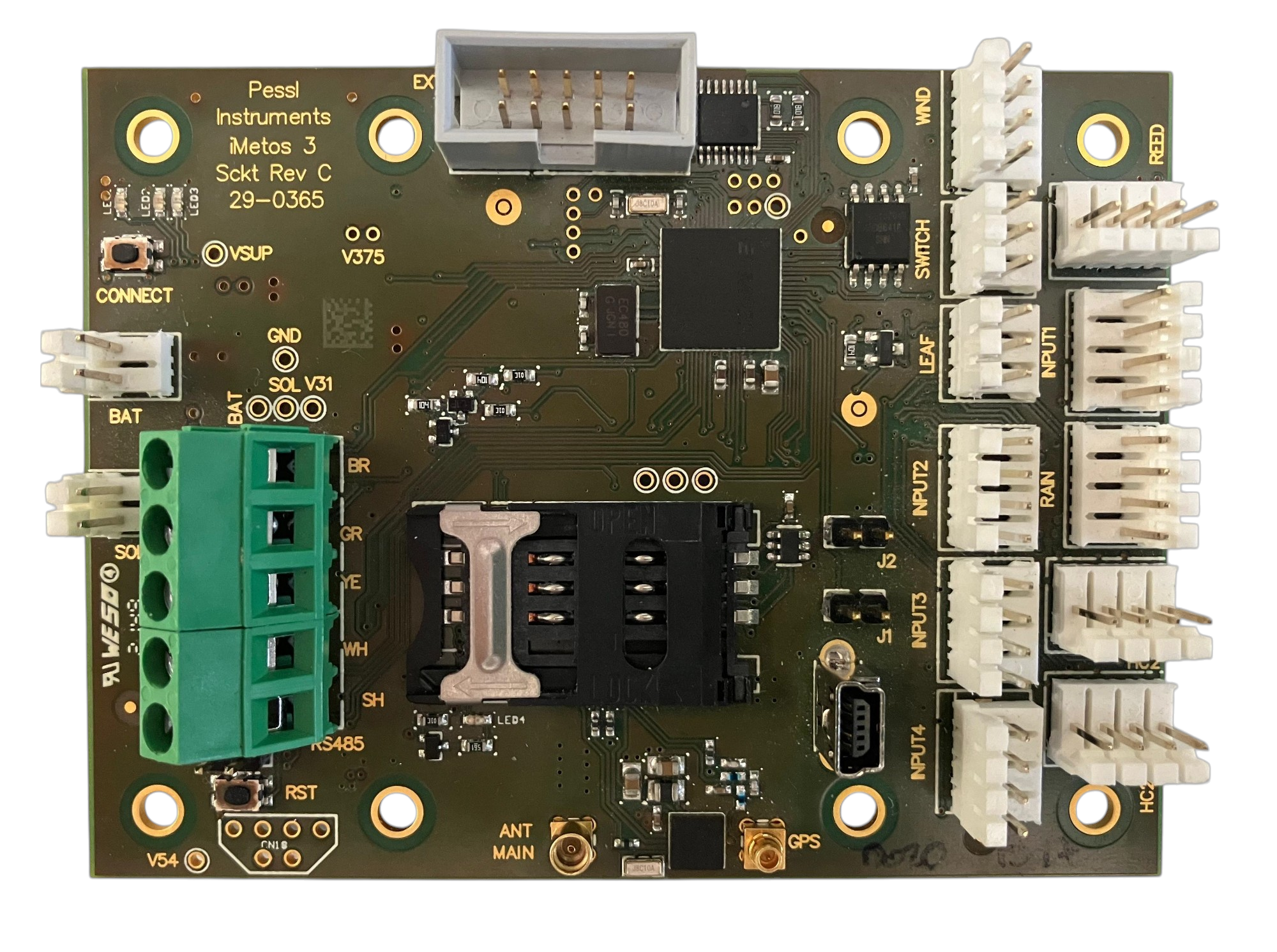
USB cable type required: USB Mini B
Before starting this procedure, make sure your iMETOS 3 or ECO D3 is turned off:
    - BAT and SOL inputs must be unplugged.
1) Download and extract the latest release of the PI Service Terminal by clicking on THIS LINK.
In case you do not know how to install it, you may find THIS GUIDE useful.2) Launch the PI Service Terminal application (.exe).
3) Turn on the Advanced Mode in the 'Settings' menu and 'Activate advanced mode':
Password: PIST2022
4) In the left section of the PI Service Terminal, locate 'Advanced functions' and choose 'FW Uploader' from the drop-down menu:
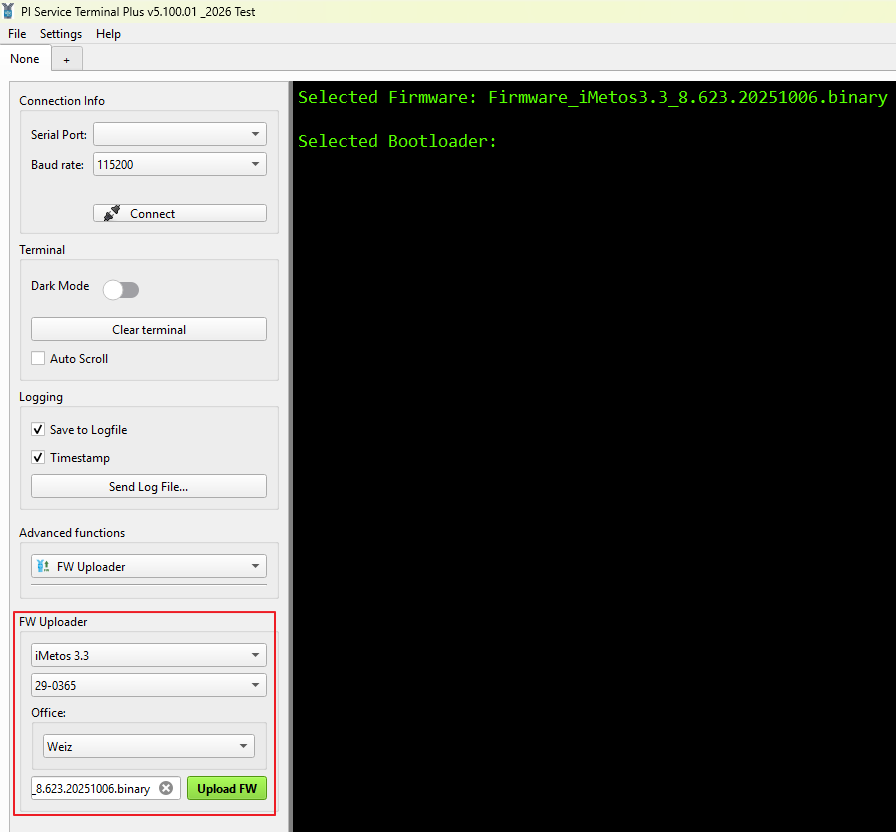
The iMETOS 3.3 firmware 'Firmware_iMetos3.3_8.XX.XXXXXXXX.bin' and ECO D3 firmware 'Firmware_iMetosEcoD3_1.XX.XXXXXXXX.bin ' are automatically loaded into the field at the bottom of the FW Uploader section.

In case the firmware hasn't been loaded automatically or if you're looking to load an alternative firmware, you can manually load it by clicking on the field.

!!! NOTE !!! MAKE SURE TO LOAD THE CORRESPONDING FIRMWARE FOR YOUR STATION.

Latest firmware for the iMETOS 3.3 - LINK
Latest firmware for the iMETOS ECO D3 - LINK
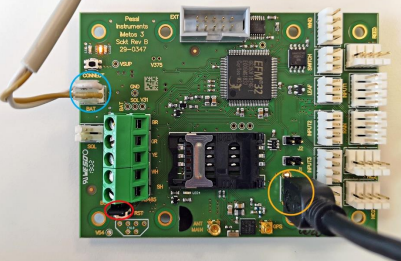
5) Plug in the USB cable (outlined in yellow in the image below).
6) Insert the jumper into the BOOT pins (outlined in red in the image below).
7) Power on your iMETOS 3.3 or ECO D3 (outlined in blue in the image below).
!!! Make sure the YELLOW led is solid ON !!!
8) Click on 'Connect'.
If a SERIAL PORT does not appear, inspect your USB cable and the USB port on your computer.9) Click on 'Upload FW' and wait.
!!! Note !!! The firmware update takes place automatically. It is completed when the message 'firmware successfully uploaded' appears.
To test the sensors and the transmission, you may find this GUIDE useful.If you encounter issues during this process or have questions about the information described in this page, please SUBMIT A TICKET to the METOS Support Center and include all the required information.
Was this article helpful?
That’s Great!
Thank you for your feedback
Sorry! We couldn't be helpful
Thank you for your feedback
Feedback sent
We appreciate your effort and will try to fix the article